“I want to dramatically improve development efficiency with the power of AI.” “But I don't know which tools and how to use...”
Claude Code, an autonomous AI coding agent developed by Anthropic, is currently attracting the most attention among developers with such problems. It stands apart from simple code generation tools and strongly supports your entire development workflow, just like a good pair of programmers.
In this article, based on the latest information from 2025, I will thoroughly explain how to use Claude Code, for everyone from beginners who use Claude Code for the first time to intermediate users who want to further deepen its use. It's structured so that you can master everything from installation methods to useful commands that are talked about in videos, and even advanced features that make a leap forward in development efficiency in one article. I will explain in technical yet easy-to-understand sentences so that it is easy to post to Webflow's CMS. Now, let's step into the next generation of development experiences with Claude Code.
1. What is Claude Code? A new era of AI coding tools
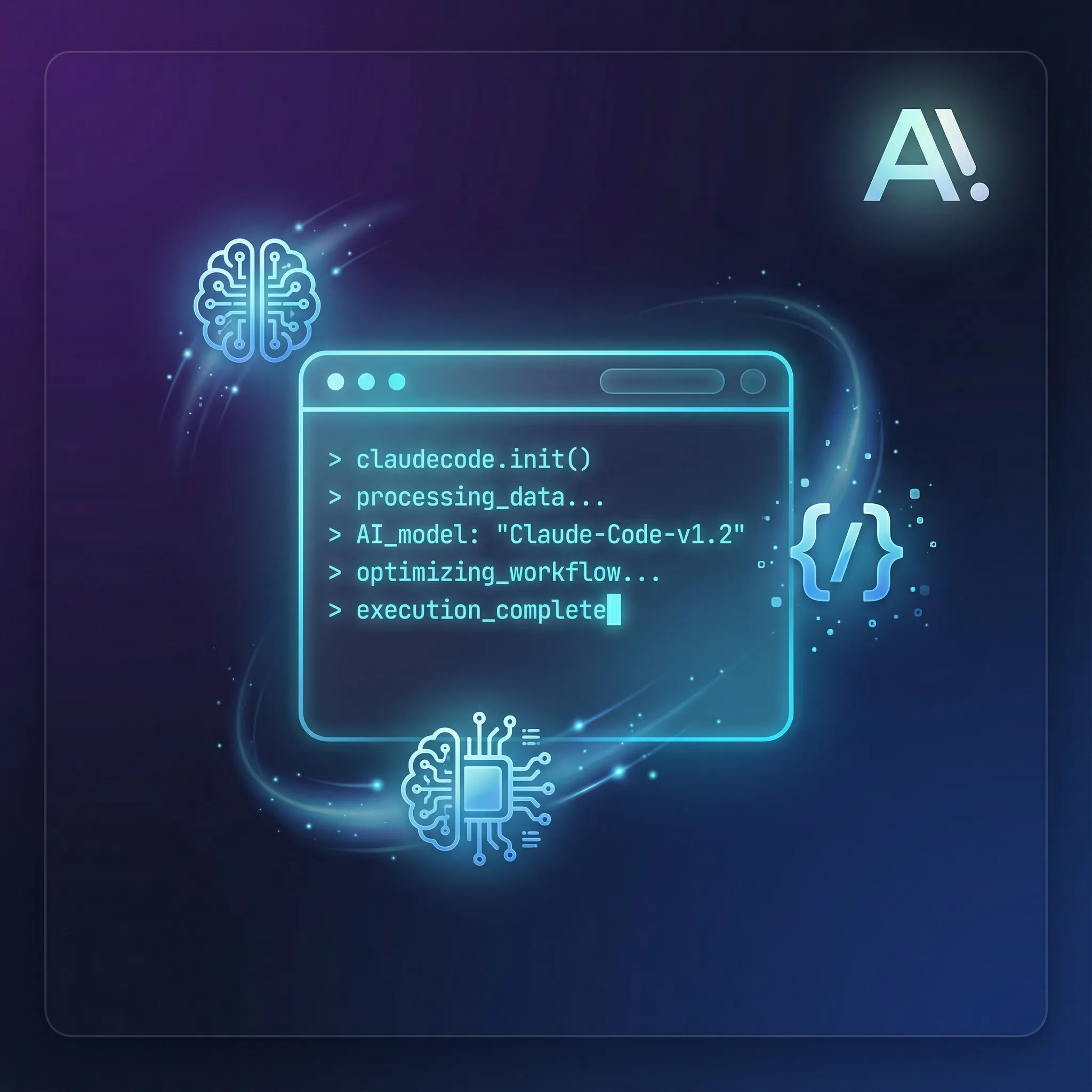
Claude Code is an AI agent that proceeds with development while interacting on a terminal. Whereas conventional AI coding tools only “generate directed code,” Claude Code has the ability to understand the context of the entire project, make its own plans, and consistently execute coding, testing, and debugging. It is truly an entity worthy of being called an “autonomous type.”
2.3 Start Claude Code in 3 steps
Getting started with Claude Code is pretty easy. No complicated settings are required, and you can start interacting with AI in just a few minutes.
2-1.Step 1 Install
First, run the following command in your terminal to install Claude Code.
/bin/bash -c “$ (curl -fSSL https://code.claude.com/install.sh)”
2-2.Step 2 Basic Operations and Initiation of Interaction
Once the installation is complete, go to the project directory and launch Claude Code with the following command:
Claude
This is all it takes to start an interactive session and a prompt (>) is displayed. All that's left is to talk to them in natural language. For example, if you want to get an overview of a new project, ask:
> Please give us an overview of this project.
Claude Code analyzes the code base and explains its structure and key features.
2-3. Step 3 Integrate with IDE
Claude Code works seamlessly with major IDEs such as VS Code. The extension is automatically installed the first time you launch it, and you can call Claude Code directly from the IDE and check code changes in real time.
3. [Required] Basic commands and shortcuts to keep in mind
To use Claude Code smoothly, it's important to remember a few basic commands and shortcuts. Here, we will carefully select and introduce those that are particularly frequently used.
3-1. CLI command
•Claude
•Feature: Start a new interactive session.
•Examples of use: Claude
•Claude --resume or Claude -c
•Feature: Resumes the last open session. Very useful when work is interrupted.
•Examples of use: Claude -c
•claude --dangerously-skip-permissions
•Feature: Skip all confirmation prompts when editing a file or running a command. It is useful for automation scripts, etc., but it can also cause unintended changes, so be careful when using it.
•Examples of use: Claude -p “Run tests” --dangerously-skip-permissions
3-2. Slash command (used in dialogues)
•/rewind
• Feature: Rewind conversations and code states to any point in time in the past. When an AI proposal goes in an unintended direction, it's easy to redo it.
•/clear
•Feature: Clear all current conversation history and reset the session.
•/stats
•Feature: Shows statistics about the current session, such as token usage.
•/plugin
•Features: Manages extensions such as “Agent Skills” described later.
3-3. Keyboard shortcuts
•Esc + Esc
•Feature: Like the /rewind command, it rewinds the state of a conversation. It can be operated more intuitively.
•Ctrl + O
•Feature: Show/hide Claude Code's “Thought Process.” You can check how the AI came to a conclusion, which is useful for debugging and improving prompts.
4. Claude Code's unique features that accelerate development
Claude Code's true value lies in its unique advanced features, which we'll introduce here. Mastering these will dramatically change your development experience.
4-1.Plan Mode
Instead of suddenly starting coding, I want them to make an implementation plan first. Plan Mode comes in handy at such times.Shift+TabIf you switch to this mode with a key, Claude Code doesn't write to the file system at all, analyzes the code base read-only, and suggests a detailed execution plan. By discussing based on this plan and moving on to implementation once consensus has been reached, rework can be drastically reduced.
4-2.ultrathink (deep thinking)
When requesting more complex or difficult tasks, use the prompt at the beginning of the promptUltrathinkTry adding the keyword. This sends a signal to Claude Code saying “I want you to think deeper and more thoroughly than normal,” and AI's thought steps can be greatly increased. As a result, you can expect higher quality and more insightful output.
4-3.claude.md (permanent memory)
If you create a file called Claude.md in the project root directory, Claude Code will always remember the content described there and continue to reference it as project-specific rules. For example, it is effective to write the following information.
• Project Overview and Objectives
•the version of the framework or library you are using
• Proprietary coding conventions
•the name of an API key or environment variable
This eliminates the trouble of repeating the same instructions every time, and makes communication with AI smoother.
4-4.Git integration
Claude Code is deeply integrated with Git and can automate change history management and commit message generation. After the AI fixes the code, it simply tells you to “commit the current changes,” it analyzes the differences and suggests an easy-to-understand commit message.
5. Take things even higher with Agent Skills and Subagents
“Agent Skills” and “Subagents” are powerful functions for further automating routine tasks and delegating specialized work.
5-1. Agent Skills (Definition of Skills)
By describing how to execute tasks that frequently occur in projects, such as “generating test code for React components” and “creating documentation for new API endpoints,” in the Skill.md file, you can register them as unique commands. For example, if you define a skill called /frontend-design, you will be able to call up complex front-end design tasks with just one command.
5-2. Subagents (task delegation)
It is a function that creates AI assistants specialized in specific roles, such as “agents specializing in code review” and “agents specializing in security vulnerability diagnosis,” and delegates the entire task. This allows highly specialized work to proceed in parallel without polluting the main AI context.
6. Cooperation with external services (MCP and image input)
Claude Code doesn't limit its capabilities to development environments.
6-1. MCP (Model Context Protocol)
It works with browser automation tools like Playwright to gather website information and perform E2E tests. For example, if you instruct “create a component by referring to the design of this web page,” it becomes possible to collaborate such as Playwright taking a screenshot of the site via the MCP server and Claude Code performing coding based on it.
6-2. Image input and interrupt
You can paste screenshots and design camp images directly into the chat section and give instructions such as “reproduce this design.” Also, even while AI is running a long process, it is possible to “interrupt” with keyboard input, give new instructions, and correct the trajectory.
7. Summary
In this article, I have comprehensively explained everything from basic usage of the autonomous AI coding agent Claude Code to application functions that make a leap forward in development efficiency. Please experience their abilities while actually testing out the commands and functions introduced.
Claude Code is more than just a tool. It's the most reliable development partner that brings your ideas to life and solves complex problems together. We hope this article helps you master Claude Code and experience the future of coding.
References
• [1] Cat's AI Channel. (2025). [2025 Latest Edition] Complete Introduction to Claude Code| Rewind · Plan Mode · Git · Ultrathink · Agent Skill... I introduced important functions that are often used.
• [2] Anthropic. (2025). Claude Code Docs.
• [3] Zenn. (2025). Claude Code reverse command encyclopedia.